

A business launches a new website, waits a few days, searches for its services on Google and finds nothing.
The immediate conclusion is often:
“Something is wrong with the SEO.”
Maybe.
But “not showing up on Google” can describe two very different problems:
- Google has not indexed the page.
- Google has indexed the page, but it is not ranking prominently for the searches you are checking.
Those problems require different solutions.
Before changing page titles, rewriting content or buying SEO services, first determine which problem you actually have.
1. Start With Google Search Console
If you own the website, Google Search Console should be the first place you look.
Use URL Inspection and enter the exact page URL.
For example:
https://example.com/services/website-development
Search Console can tell you whether Google knows about the URL, whether it has been indexed, when it was crawled and which canonical URL Google selected.
This immediately gives you more useful information than repeatedly searching Google manually.
If the URL is not indexed, investigate the technical reason first.
If it is indexed, the problem may instead be relevance, competition or search demand.
2. Confirm the Page Returns 200 OK
A page intended to appear in search should normally return a successful HTTP response.
For a normal page, that means:
200 OK
Check that the URL is not accidentally returning:
301
302
404
500
503
A redirect is not necessarily wrong, but then Google will evaluate the destination rather than the URL you expected to rank.
A 404 or server error is a much more obvious problem.
Search Console's URL Inspection tool can help identify what Google receives when requesting the page.
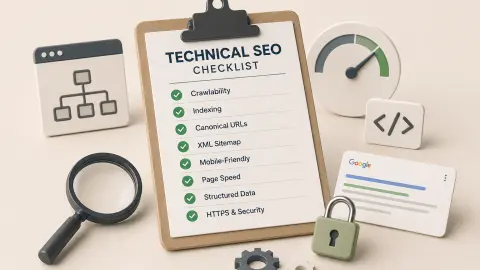
This is also one of the checks worth performing during a technical SEO review before launch.
3. Look for an Accidental noindex
This is one of the easiest mistakes to make during a website launch.
Development or staging websites are often configured with:
<meta name="robots" content="noindex">
That is useful while the website is private or unfinished.
It becomes a problem if the directive survives the production deployment.
You may also encounter noindex through an HTTP header rather than directly in the HTML.
Inspect the affected page in Search Console and verify that pages intended for search are actually indexable.
Do not simply remove every noindex directive from the website.
Some utility or private pages may intentionally be excluded.
The objective is to make sure important public pages are not excluded by mistake.
4. Check robots.txt
Your robots.txt file controls which URLs Google's crawlers are allowed to request.
A rule such as:
User-agent: *
Disallow: /
can effectively block crawling across the entire website.
More commonly, a smaller section may be blocked accidentally.
For example:
Disallow: /services/
would be a serious problem if /services/ contains pages you expect people to find through search.
There is also an important distinction between robots.txt and noindex.
robots.txt controls crawling.
noindex controls indexing when the crawler can actually access and read the directive.
Do not use the two interchangeably.
5. Check the Canonical URL
A page can be accessible and technically indexable while still telling search engines that another URL is the preferred version.
For example, imagine this page:
https://example.com/service-a
contains:
<link rel="canonical" href="https://example.com/service-b">
That may cause the first page to be treated as an alternate version rather than the primary URL.
Search Console's URL Inspection report can show the canonical you declared and, for indexed URLs, which canonical Google selected.
Check especially for canonicals accidentally pointing to:
- the homepage
- another service
- an old URL
- a staging domain
- a different language version
- an HTTP version of the site
Canonical mistakes are particularly common after migrations and redesigns.
6. Make Sure Google Can Discover the Page
A page can technically exist without being well connected to the rest of the website.
Imagine creating:
/services/custom-software
but never linking to it from:
- navigation
- service pages
- homepage
- related content
- other relevant pages
Google can sometimes discover URLs in other ways, but important pages should not depend on luck.
Use normal crawlable internal links.
For example:
<a href="/services/custom-software">Custom Software</a>
Internal linking helps both users and search engines discover the structure of the website.
A sitemap is useful, but it should not be the only place an important page exists.
7. Check Your XML Sitemap
Your XML sitemap should contain the canonical URLs you actually want search engines to discover.
For example:
https://example.com/
https://example.com/services/website-development
https://example.com/services/ecommerce-development
https://example.com/services/custom-software
Check that important URLs are present.
Also look for URLs that should not be there, such as:
- redirects
404pages- staging URLs
- duplicate URL versions
noindexpages
You can submit the sitemap through Search Console.
A sitemap helps Google discover URLs, but it does not guarantee that every submitted page will be indexed.
8. Check Whether the Important Content Is Actually Visible
A page should contain enough accessible information for users and search engines to understand what it is about.
A service page containing little more than:
Custom Software

We build great software.

Contact us.
provides very little context.
A useful page might explain:
- what the service is
- which problems it solves
- who it is for
- relevant capabilities
- how the process works
- common questions
- the next step
This does not mean making every page extremely long.
It means giving the page a clear purpose and enough substance to satisfy that purpose.
Google's own Search Essentials emphasizes helpful, reliable, people-first content rather than creating pages purely for search engines.
9. Check JavaScript-Rendered Content
This is less likely to be an issue on a traditional server-rendered website, but it matters for some JavaScript-heavy applications.
If important page content exists only after client-side JavaScript runs, verify what Google actually sees after rendering.
Search Console's URL Inspection tool can help you inspect the rendered page.
Look for important content such as:
- headings
- service descriptions
- internal links
- product information
If users can see something but the relevant content is missing from Google's rendered HTML, you may have a rendering or implementation problem.
For public content websites, making important content available reliably without unnecessary client-side dependency can simplify crawling and indexing.
10. Check Whether the Website Is Simply New
A newly launched website may not appear immediately.
Google needs to discover, crawl, process and potentially index the pages.
There is no guaranteed time in which a new URL must be indexed.
For an important new page, you can:
- make sure it is internally linked
- include it in the sitemap
- inspect it in Search Console
- use Request Indexing where appropriate
But requesting indexing is not a command that guarantees inclusion.
If the site is very new, sometimes the correct action is simply to verify that the technical setup is correct and allow time for discovery.
11. If It Is Indexed, Stop Diagnosing an Indexing Problem
This distinction is critical.
Suppose Search Console says:
URL is on Google
but your page still does not appear when you search:
best software development company
That does not necessarily indicate an indexing failure.
The page is already indexed.
You now have a ranking and relevance problem, which is a different question.
Google may have many other pages competing for the same search.
Your page may lack:
- sufficient relevance
- useful depth
- strong internal context
- authority
- differentiation
- appropriate search intent
Do not keep submitting the same indexed URL for indexing.
Start evaluating why Google would choose your page over alternatives.
12. Check Whether You Are Targeting a Realistic Search
Businesses sometimes judge SEO using extremely broad searches.
For example:
software company
or:
web design
These can be highly competitive and ambiguous queries.
A business may be indexed perfectly while still having little chance of immediately appearing near the top for them.
Instead, evaluate whether your pages clearly correspond to specific customer needs.
A page about custom software for business workflow automation is much more focused than a generic page trying to rank for every possible software-related search.
Good website planning should account for this before pages are designed, as discussed in how to plan a business website before design starts.
13. Look for Duplicate or Very Similar Pages
Sometimes several pages compete with each other because they cover nearly the same subject.
For example:
/custom-software
/custom-software-development
/software-development
/business-software
If all four pages say almost the same thing, the website may not be creating four strong search opportunities.
It may simply be creating four weak variations of the same page.
Separate pages should exist because they serve meaningfully different user needs or topics—not because adding another keyword to the URL seemed useful.
Consolidating overlapping content can sometimes produce a clearer site structure.
14. Crawl the Website
For a practical technical check, crawl the website using a tool such as Screaming Frog SEO Spider.
Review:
- response codes
- internal links
- canonicals
- page titles
- indexability
- redirects
- broken URLs
This is especially useful after a launch or redesign because problems can affect many pages at once.
For local development, you can crawl a locally accessible site first.
Then crawl the real production domain after deployment because production-specific issues such as HTTPS redirects, hostnames and live server responses only exist there.
15. Use a Simple Diagnostic Order
When a page is missing from Google, investigate in this order:
- Does the URL exist and return
200 OK? - Can Google crawl it?
- Is it accidentally
noindex? - Does the canonical point somewhere else?
- Can Google discover it through internal links?
- Is it included in the correct sitemap?
- Can Google see the important content?
- Does Search Console say it is indexed?
- If indexed, are you actually dealing with a ranking problem?
This order prevents a common mistake:
spending hours rewriting SEO copy when the page was excluded from indexing by a technical configuration.
Final Thoughts
When a website is not showing up on Google, do not start by guessing.
Start by identifying the stage where the problem exists.
Discovery → Crawling → Indexing → Ranking
If Google cannot discover or crawl the page, fix accessibility.
If the page is blocked from indexing, fix the indexing configuration.
If Google selected another canonical, investigate why.
If the page is already indexed, stop treating it like an indexing problem and evaluate the content, relevance and competitive landscape instead.
The fastest SEO diagnosis is often not adding more optimization.
It is asking the right technical question first.